# Development Environments
For this course, we will use the web-based development environment [Jupyterhub](https://en.wikipedia.org/wiki/Project_Jupyter). It is available to all participants for the duration of the course.
For long-term work, a personal installation is recommended.
## Installing on Your Own Computer (Linux/MacOS/MS Windows)
1. Install Julia with the installation and update manager **juliaup**: .
2. Install **Visual Studio Code** as editor/IDE: .
3. Install the **Julia language extension** in VS Code: .
Getting started:
- Create a new file with the extension `.jl` in VS Code
- Write Julia code
- `Shift-Enter` or `Ctrl-Enter` at the end of a statement or block starts a Julia-REPL: the code is copied to the REPL and executed
- [Key bindings for VS Code](https://code.visualstudio.com/docs/getstarted/keybindings#_keyboard-shortcuts-reference)
and [for Julia in VS Code](https://www.julia-vscode.org/docs/stable/userguide/keybindings/)
### The Julia-REPL
When Julia is started directly from the command line, the [Julia-REPL](https://docs.julialang.org/en/v1/stdlib/REPL/) (*read-eval-print* loop) opens, allowing interactive work.
```default
$ julia
_
_ _ _(_)_ | Documentation: https://docs.julialang.org
(_) | (_) (_) |
_ _ _| |_ __ _ | Type "?" for help, "]?" for Pkg help.
| | | | | | |/ _` | |
| | |_| | | | (_| | | Version 1.12.5 (2026-02-09)
_/ |\__'_|_|_|\__'_| | Official https://julialang.org/ release
|__/ |
julia>
```
## Working on the [Jupyterhub Webserver](https://misun103.mathematik.uni-leipzig.de/)
### Jupyterhub & Jupyter
- [JupyterHub](https://de.wikipedia.org/wiki/Project_Jupyter) is a multi-user server for Jupyter notebooks.
- Jupyter is a web-based interactive programming environment
- Originally written for and in Python, but now supports many programming languages
- In Jupyter, one works with so-called *notebooks*: structured text files (JSON) with the file extension `*.ipynb`.
Our Jupyterhub server:
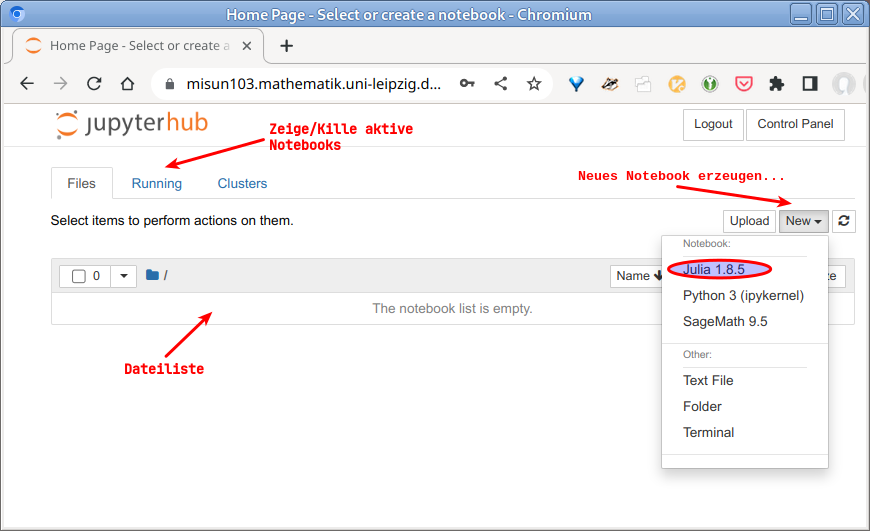
After logging into Jupyterhub, a file manager appears:
::: {.content-visible when-format="html"}
:::
::: {.content-visible when-format="typst"}
{width=50%}
:::
This can be used to:
- open existing *notebooks*,
- create new *notebooks*,
- upload files, e.g., notebooks, from your local computer,
- log out when finished (Please don't forget this!)
### Jupyter notebooks
::: {.content-visible when-format="html"}
:::
::: {.content-visible when-format="typst"}
{width=50%}
:::
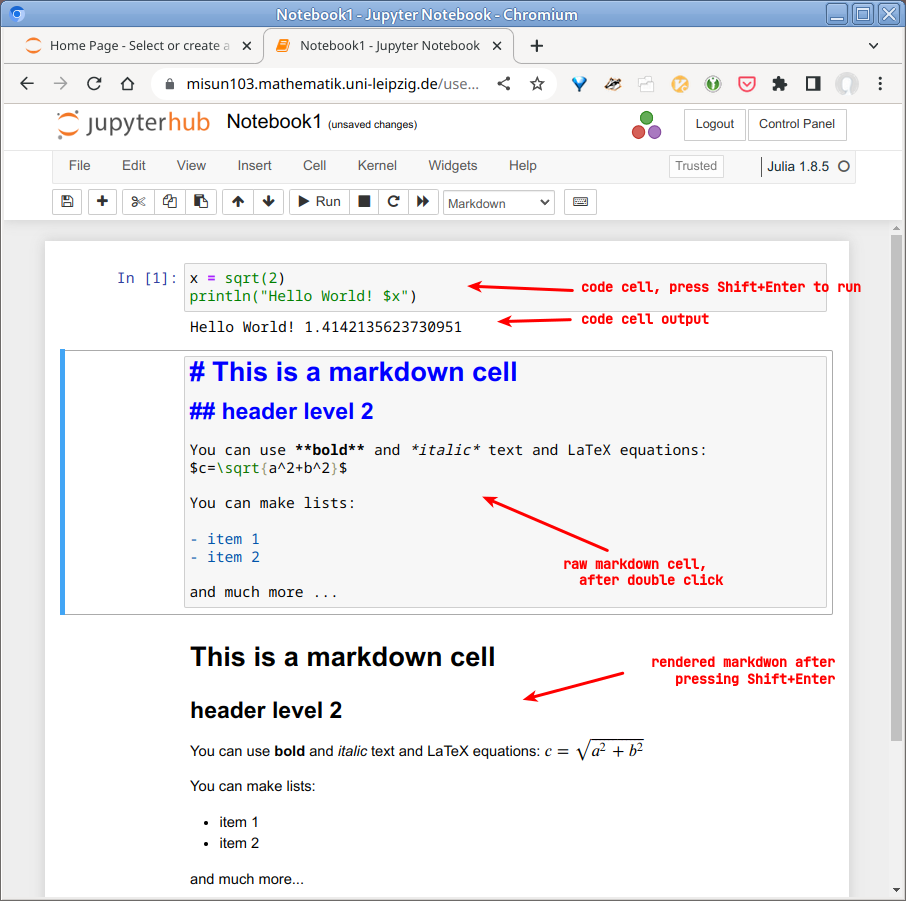
*Notebooks* consist of cells. Cells can contain
- Code, or
- Text/documentation (Markdown)
In text cells, the markup language [Markdown](https://en.wikipedia.org/wiki/Markdown) can be used for formatting and LaTeX for mathematical equations.
::: {.callout-tip }
Please check the `User Interface Tour` and `Keyboard Shortcuts` topics in the `Help` menu!
:::
The cell currently being worked on can be in `command mode` or `edit mode`.
:::{.narrow}
| | *Command mode* | *Edit mode* |
|:-------|:---------------:|:-----------:|
| Activate mode | `ESC` | Double-click or `Enter` in cell |
| New cell | `b` | `Alt-Enter` |
| Delete cell | `dd` | |
| Save notebook | `s` | `Ctrl-s` |
| Rename notebook | `Menu -> File -> Rename` | `Menu -> File -> Rename` |
| Close notebook | `Menu -> File -> Close & Halt` | `Menu -> File -> Close & Halt` |
| *Run cell* | `Ctrl-Enter` | `Ctrl-Enter` |
| *Run cell, move to next cell* | `Shift-Enter` | `Shift-Enter` |
| *Run cell, insert new cell below* | `Alt-Enter` | `Alt-Enter` |
: {.striped}
:::
::: {.content-visible when-format="html"}
:::
::: {.content-visible when-format="typst"}
{width=50%}
:::
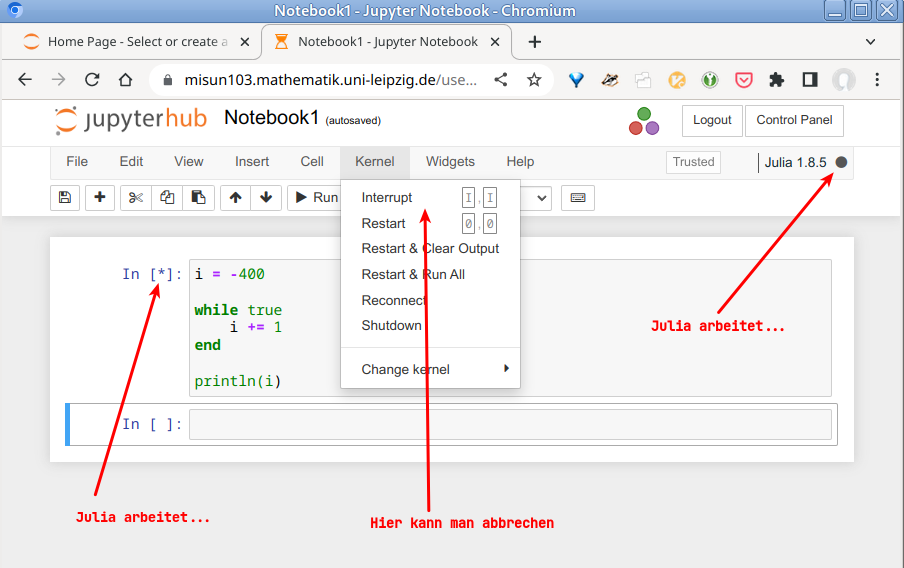
When a cell is working, its cell number becomes a `*` and
the `kernel busy` indicator appears (solid black dot at the top right next to the
Julia version). If this takes too long (an *infinite loop*
can easily happen):
- click `Menu -> Kernel -> Interrupt`. If this doesn't work,
- click `Menu -> Kernel -> Restart`.
::: {.callout-important }
After a `kernel restart`, all cells containing the required definitions,
`using` statements, etc. must be executed again.
**At the end of each session, please always:**
- `Menu -> File -> Save & Checkpoint`
- `Menu -> File -> Close & Halt`
- `Logout`
:::